
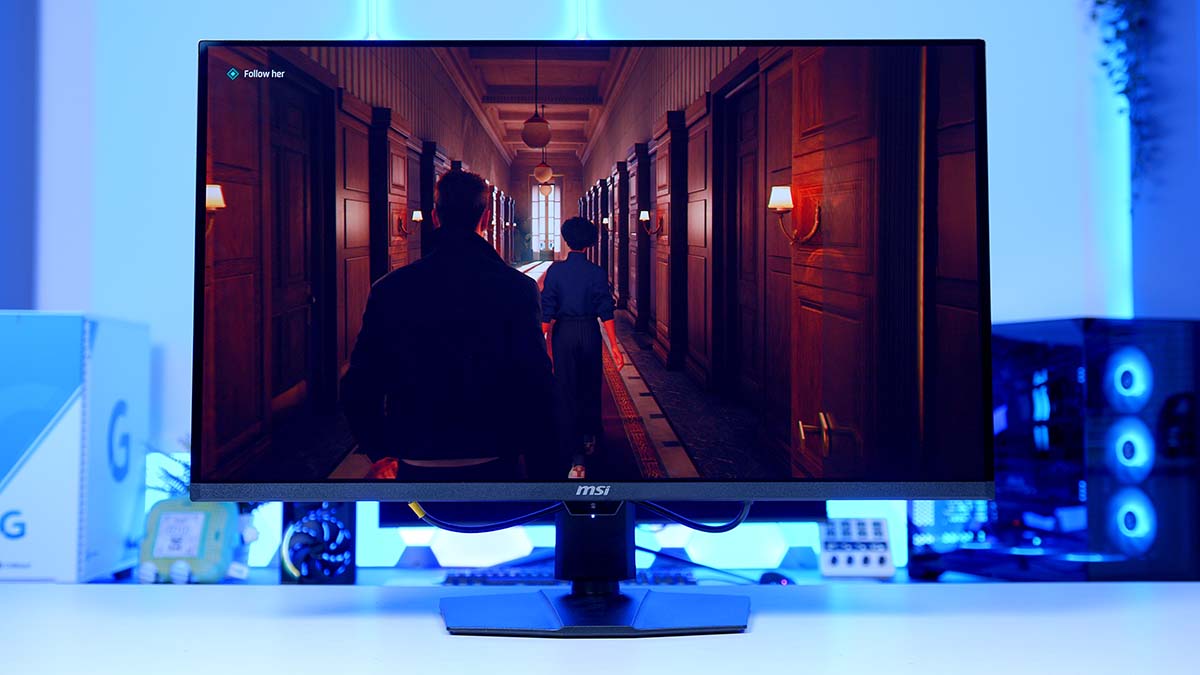
MSI’s 32-inch 4K QD-OLED range has quietly become one of the safest bets in gaming monitors, and the MPG 322UR QD-OLED X24 is the one that finally goes after the things we’ve all been moaning about. Not a redesign, more a re-engineering, with Samsung Display’s fourth-gen panel doing all the graft underneath a chassis you’ll recognise instantly.
And the timing is good. The two gripes that have followed QD-OLED around since day one, that purple tinge creeping into your blacks the second a lamp goes on and full-screen brightness that never quite got there, are exactly what MSI has gone after here. Chuck in full-fat DisplayPort 2.1a and a sensor that handles burn-in protection so you don’t have to, and there’s a fair bit more going on than the model number lets on.
Specifications
The panel is where all of this starts. MSI has gone with Samsung Display’s fourth-generation QD-OLED, which stacks five light-emitting layers where the older panels made do with one. MSI reckons that’s worth around 30% in light efficiency, and here’s the bit that matters: each layer gets driven that little bit more gently for the same picture on screen. Less heat, less wear, and a panel that should hold onto its brightness for longer.
Samsung has named this arrangement Penta Tandem which, sorry, is a daft name for a fourth-generation panel. Penta means five, you’d assume fifth-gen, and you’d be wrong. Worth knowing if you’re cross-shopping, because Samsung’s newest panels have shifted to a different subpixel layout again while this one sticks with the triangular arrangement QD-OLED has used from the off. At 4K across 31.5 inches though, the pixels are packed tightly enough that the text fringing this normally causes just isn’t something you’ll clock day to day.
MSI MPG 322UR QD-OLED X24 Specifications
- Model MSI MPG 322UR QD-OLED X24
- Panel Size / Type 31.5 inch flat QD-OLED (4th-gen, 5-layer tandem)
- Resolution & Refresh Rate 3840 x 2160 (UHD) at 240Hz
- Response Time 0.03ms (GtG)
-
Brightness
SDR: 300 cd/m²
HDR: 1,000 nits (peak) - Contrast Ratio 1,500,000:1 (typical)
- HDR Support VESA DisplayHDR True Black 500
- Colour Gamut 97% Adobe RGB / 99% DCI-P3 / 138% sRGB (CIE1976)
- Motion Clarity VESA ClearMR 13000
-
Adaptive Sync
NVIDIA G-SYNC Compatible
AMD FreeSync Premium Pro - Surface Treatment Anti-reflection (DarkArmor Film)
-
Video Inputs
2x HDMI 2.1 (UHD@240Hz)
1x DisplayPort 2.1a (UHBR20)
1x USB Type-C (DP alt. mode, 98W PD) -
USB & Audio
2x USB 5Gbps Type-A
1x USB 5Gbps Type-B
1x Headphone-out -
Ergonomics
Tilt -5° to 15°, swivel -30° to 30°,
pivot -10° to 10°, height 0 to 110mm - VESA Mounting 100 x 100mm
- Warranty 3 years (including panel burn-in)
The certifications tell the story better than the marketing does. Moving up a DisplayHDR True Black tier means MSI has had to hit higher brightness right across the board, not just in tiny highlights, and that’s the measurement that genuinely changes how a bright scene looks. ClearMR covers motion clarity, and there’s a TrueBright badge here too, which grades panels on brightness as your eye perceives it by factoring contrast in rather than just measuring raw output.
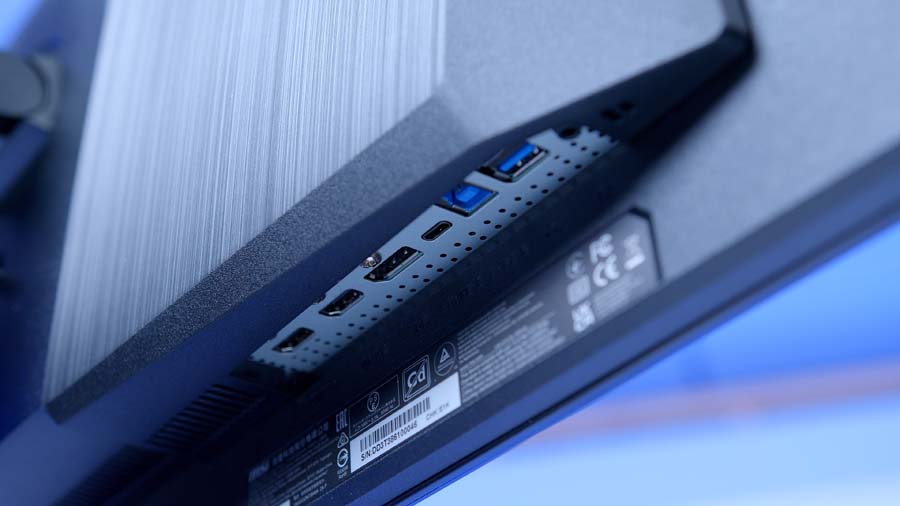
Connectivity is where MSI has been unusually generous. DisplayPort 2.1a at UHBR20 hands over the full 80Gbps, enough to carry 4K at 240Hz without Display Stream Compression getting involved at all. Two HDMI 2.1 ports sit next to it for consoles, both running the full 48Gbps with VRR (Variable Refresh Rate) and ALLM (Auto Low Latency Mode), and HDMI CEC means your controller can wake the screen and drop it into the right picture mode on its own. Then there’s USB-C with DisplayPort alt mode and 98W of Power Delivery, so your laptop charges and drives the display off a single cable.
A KVM (Keyboard, Video and Mouse) switch shares one keyboard and mouse across two machines, running off the USB hub. Audio is headphone-out only. Everything gets driven by a five-way joystick tucked behind the bottom bezel, and if you’d rather not go feeling around back there, MSI’s Gaming Intelligence app puts the same settings on your desktop, with an Android remote app doing the same job from your phone.
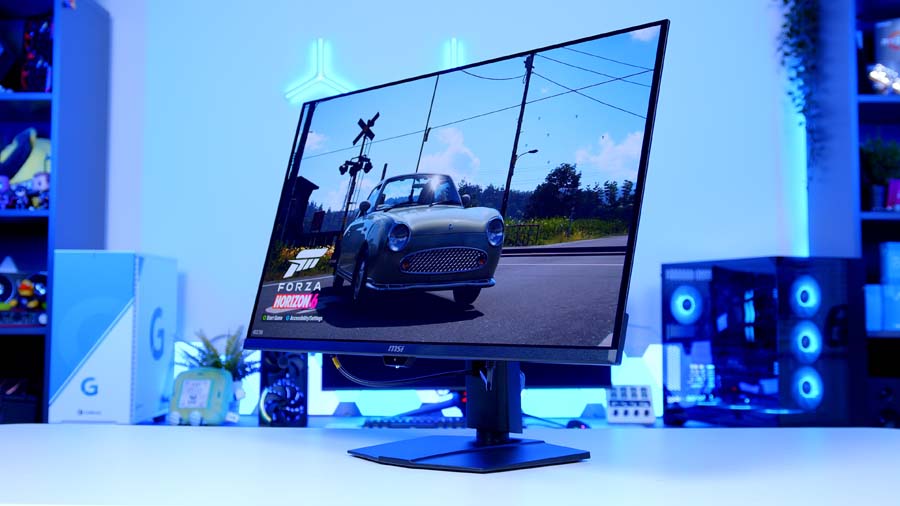
Physically, it’s a flat 16:9 panel with an anti-reflection finish and a stand covering tilt, swivel and height. One thing to flag: that pivot figure is a small levelling range, not a full portrait rotation, so this isn’t a screen you’ll be spinning on its side for code or documents. VESA mounting is there at the standard 100x100mm if a monitor arm is more your thing, and MSI covers the panel for three years with burn-in included, which on an OLED is the warranty line that counts.
Design
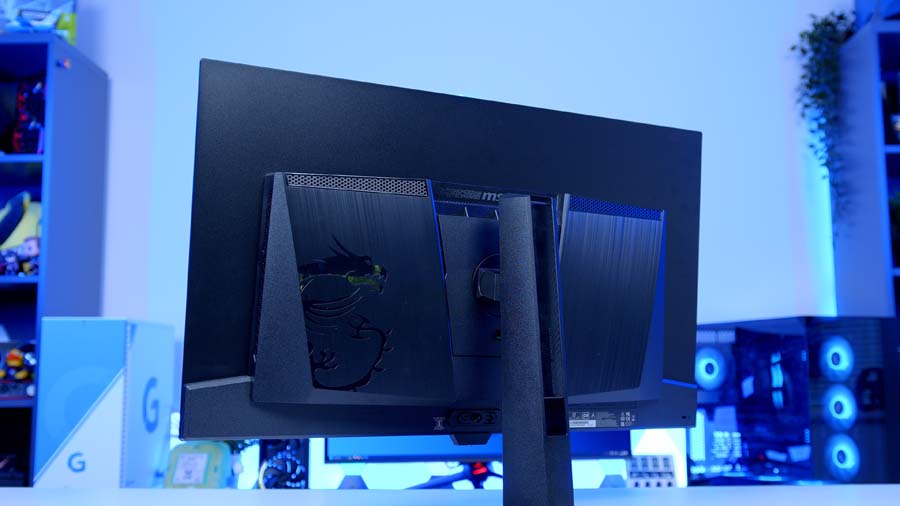
MSI has kept things restrained here, and at this size I’m glad they have. No aggressive angular shrouding on the rear, no oversized branding plastered across the front. A 32-inch panel already dominates a desk before you’ve added anything else to it, so the last thing you want is a screen shouting at you as well.
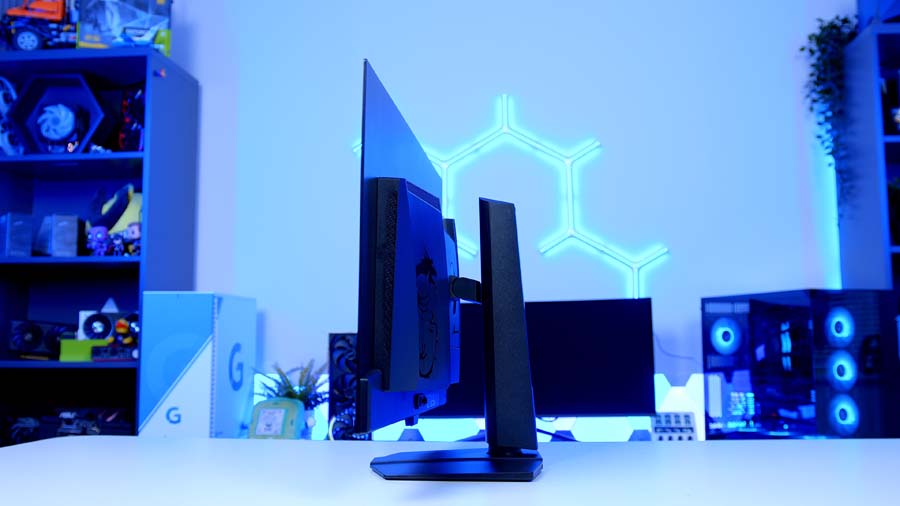
The stand uses a flat, low-profile base that lets you shove a keyboard or a controller dock underneath, and there’s a cable routing slot through the stem, which after the 341CQR’s complete absence of one is a very welcome sight. It clips on through a quick-release mechanism too, so pulling it off for VESA mounting doesn’t turn into a screwdriver hunt. The assembly itself is plain and the adjustment range is fairly modest for a screen this big, but it holds the panel rock steady and keeps the footprint tight.
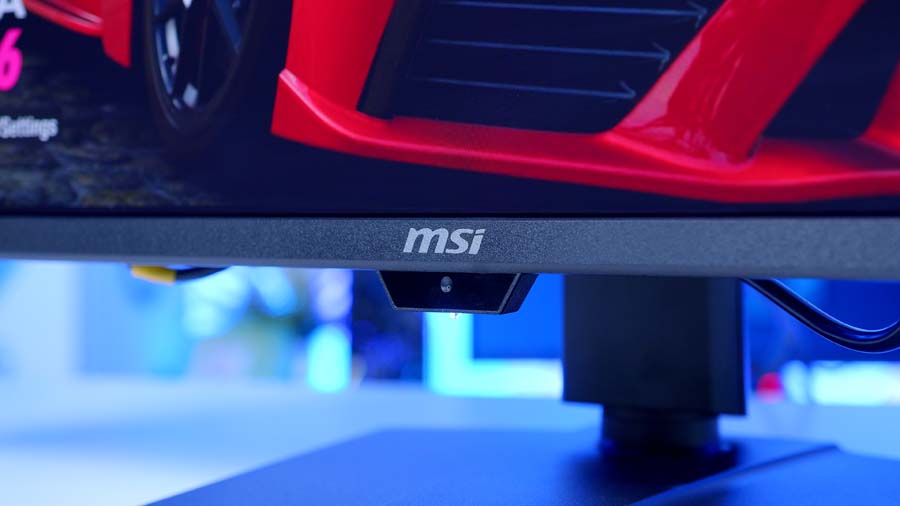
The front is about as minimal as monitors get. Slim bezels on three sides, a slightly deeper chin carrying the MSI logo, and a dual-stage panel border with a black inner edge sitting inside the harder outer frame. Hanging under the middle of that chin is the AI Care Sensor, a little module you’ll spot if you go looking for it and forget about entirely once you’re using the thing.
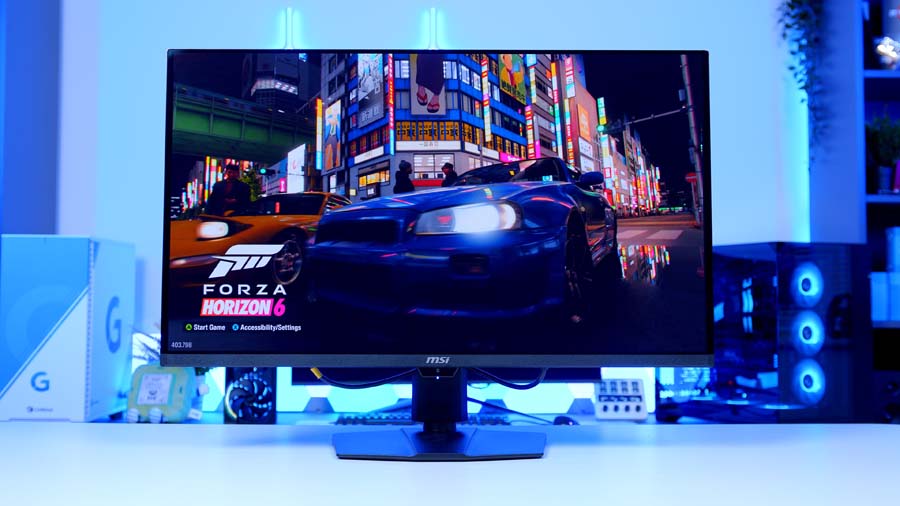
And that sensor earns its place. It works out whether there’s a person in front of the display, dims or locks the screen when you wander off, then wakes it straight back up when you return. It’ll handle automatic brightness and colour temperature shifts to match your room lighting too. MSI processes the lot on a local chip with nothing stored or sent anywhere, which is exactly what you want to hear when there’s a camera-adjacent sensor pointed at your desk all day.
Round the back, the one bit of flair is a Mystic Light element sat above the stand mount. It throws a soft wash onto the wall behind the screen and syncs with the rest of your Mystic Light kit, and Windows 11’s own dynamic lighting controls will drive it without installing anything extra. Ambient glow, not a light show, which for a screen you’re staring at all day is about the right amount of RGB.
Ports face downwards on the rear, so cable runs stay out of sight from the front, though it does mean going in blind when you’re swapping an input. One neat touch I didn’t expect to like: the aspect ratio option buried in the OSD, which shrinks the active image down to imitate a 27-inch or 24.5-inch screen. Sounds like a gimmick. Then you load a competitive shooter on a panel this wide and realise you’re moving your eyes more than your mouse.
QD-OLED, WOLED And Mini-LED: What Sets Them Apart
Right, quick detour, because this is the question we get asked more than any other. Panel technology isn’t a footnote on the spec sheet any more, it’s the single biggest reason to pick one monitor over another. So if you’ve been out of the market a few years, here’s where everything currently sits and which side this MSI lands on.
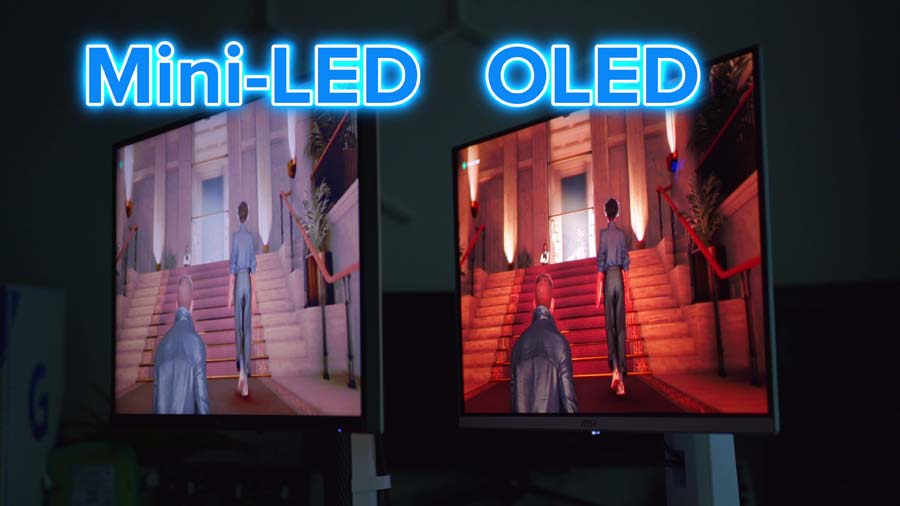
QD-OLED, the panel in this thing, is Samsung Display’s spin on OLED. Every pixel makes its own light and can switch off completely, so black is actually black and contrast is effectively infinite. What sets QD-OLED apart from the other OLED flavour is the quantum dot layer, which converts blue light into red and green with very little lost along the way. No white subpixel watering things down, no colour filter soaking up output, which is why QD-OLED tends to look punchier at high brightness.
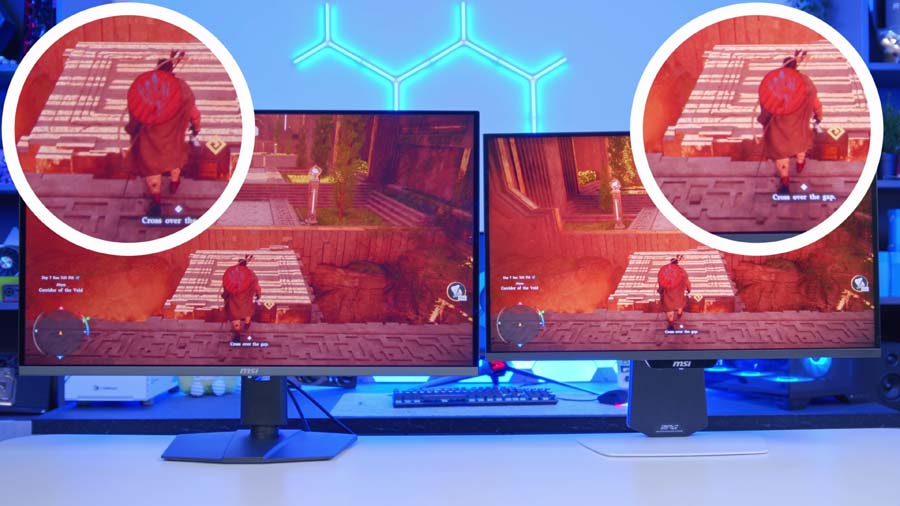
The other OLED option is WOLED from LG Display, which starts with a white emitter and puts colour filters in front of it. That white subpixel buys extra raw brightness for everyday desktop work, and WOLED still just about edges QD-OLED on peak SDR output. You give up a bit of colour punch at the top end for it, and the two use different subpixel arrangements, so text can look subtly different between them.
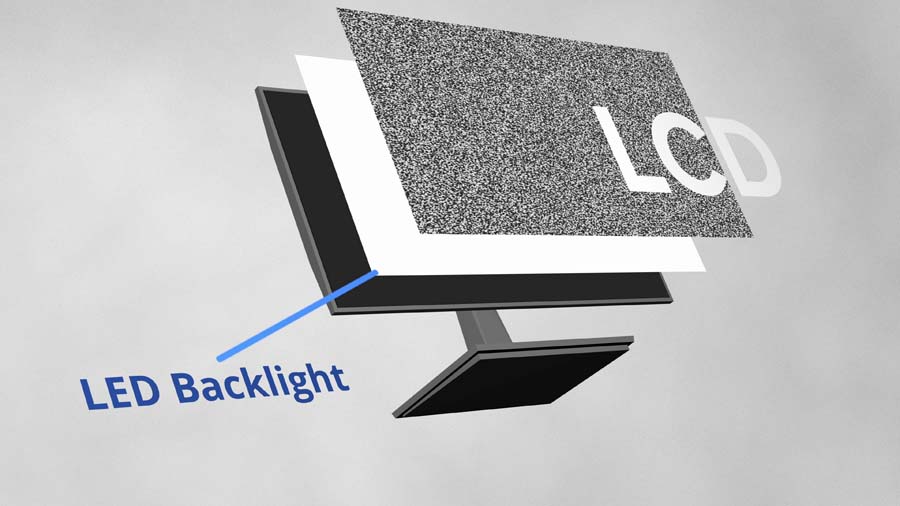
Then there’s LCD, where a backlight shines through a liquid crystal layer. IPS is the one you’ll know, and it’s still cracking value with strong colour accuracy and wide viewing angles, but that backlight never fully switches off, so blacks land as dark grey and contrast stays capped. VA panels claw back a lot of native contrast but tend to smear in dark, fast-moving scenes.
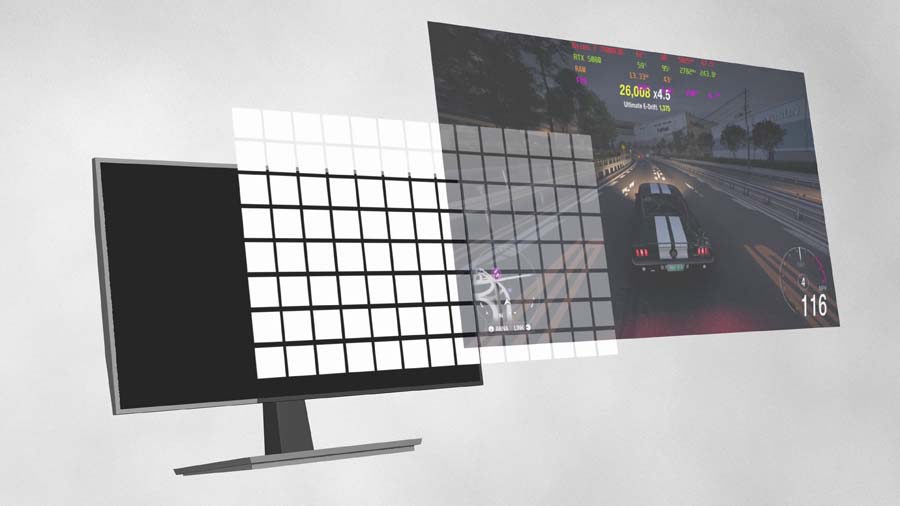
Mini-LED is LCD’s answer to all this, and it’s a good one. Split that backlight into thousands of individually dimmable zones and you get somewhere near OLED contrast while pushing peak brightness an OLED simply can’t touch, sometimes several times over. The catch? Zones are enormous compared to pixels, so a bright object on a dark background picks up a visible halo around it, and there’s no equivalent of a single pixel just turning itself off.
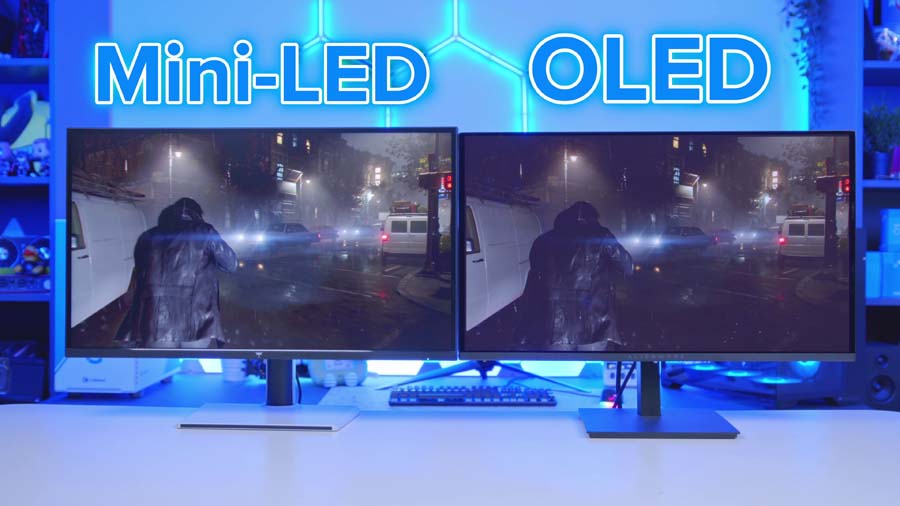
So where does that leave the 322UR X24? It trades outright brightness for per-pixel control, and this fourth-gen panel narrows that brightness gap without ever quite closing it. Game and watch in a room where you’ve got some say over the lighting and the OLED picture wins comfortably. Sit your desk under a south-facing window all afternoon and a Mini-LED display will fight the room better. The one OLED caveat still standing is burn-in, and that’s exactly why the care features and that three-year cover matter as much as they do.
Features We Like
DarkArmor Film Deals With The Bright Room Problem
This is the change you’ll notice first. Ambient light has been OLED’s most stubborn weakness for years, with reflections lifting the black level and dropping a purple or reddish tint over anything dark on screen. DarkArmor absorbs more of that stray light and reflects what’s left neutrally, and MSI puts the improvement in pure black level at around 40%.
The same coating takes surface hardness from 2H up to 3H, which MSI rates as two and a half times more scratch resistant. A footnote, until someone in your house takes a kitchen cloth to your very expensive panel.
Full-Fat DisplayPort 2.1a
Loads of monitors claim DisplayPort 2.1 support and then quietly fit a lower link rate. Not here. UHBR20 delivers the full 80Gbps, roughly two and a half times what DisplayPort 1.4a can manage, and that’s more than enough headroom for 4K at 240Hz completely uncompressed.
Skipping Display Stream Compression isn’t just a line for the spec sheet either. It keeps NVIDIA’s DSR and DLDSR supersampling options on the table, which DSC has a habit of locking out, and it takes one more variable out of the chain if you’re the sort chasing every last millisecond of latency.
Features We Don’t Like
No Speakers On Board
MSI’s spec sheet lists a headphone output and that’s your lot, so there’s no audio built into the chassis at all. Plenty of rivals at this money throw in a token pair of drivers, and while nobody is buying a monitor for its speakers, they are handy for firing on a quick video without reaching for a headset.
Realistically this only bites in one scenario, and that’s plugging a console straight in over HDMI with no other audio route sorted. Already got a headset or desktop speakers on the go? You’ll never think about it twice.
The USB Hub Feels Thin For A Flagship
You get two downstream USB Type-A ports at 5Gbps, fed by a single Type-B upstream. That’s a keyboard and a mouse covered, which is precisely what the KVM switch needs to do its job, so the main use case is sorted.
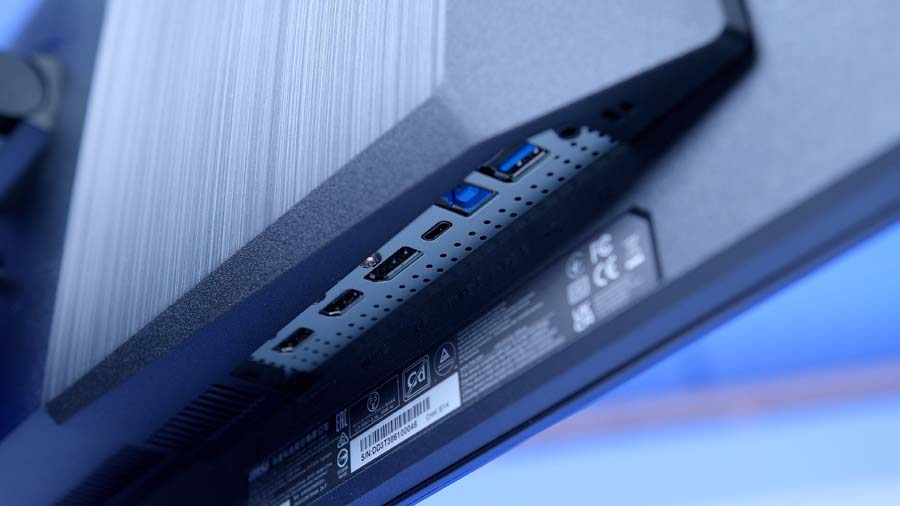
A third port would have opened the dock side of this up though, for a headset dongle or a webcam, without hanging a separate hub off the back. Small gripe on a screen this well connected everywhere else, but it’s the one spot where the I/O feels less thought through than the rest of it.
Conclusion
If you’re already sat in front of a 32-inch 4K QD-OLED, I’m not going to pretend this is an upgrade worth making. The panel is better, both in ways you’d spot side by side and in ways you’d stop noticing inside a fortnight, but none of it adds up to a reason for binning off a screen that’s barely two years old.
Coming to OLED for the first time though? Completely different conversation. DarkArmor takes away the caveat that used to be attached to every QD-OLED recommendation we made, which was that you’d want some control over your room lighting before pulling the trigger. That caveat hasn’t vanished entirely, and a Mini-LED display will still win a straight scrap with direct sunlight, but it’s shrunk enough that it’s no longer the first thing out of my mouth.
What you’re left with is a screen that gets the boring stuff right. Colour lands close enough out of the box that the included calibration report feels like a formality, the burn-in protection gets on with it quietly instead of nagging you every four hours, and there’s three years of cover including the panel itself if it does misbehave. MSI hasn’t built something that demos well under shop lighting here. They’ve built something that slowly stops giving you things to think about, and a year down the line that’s worth a great deal more.