
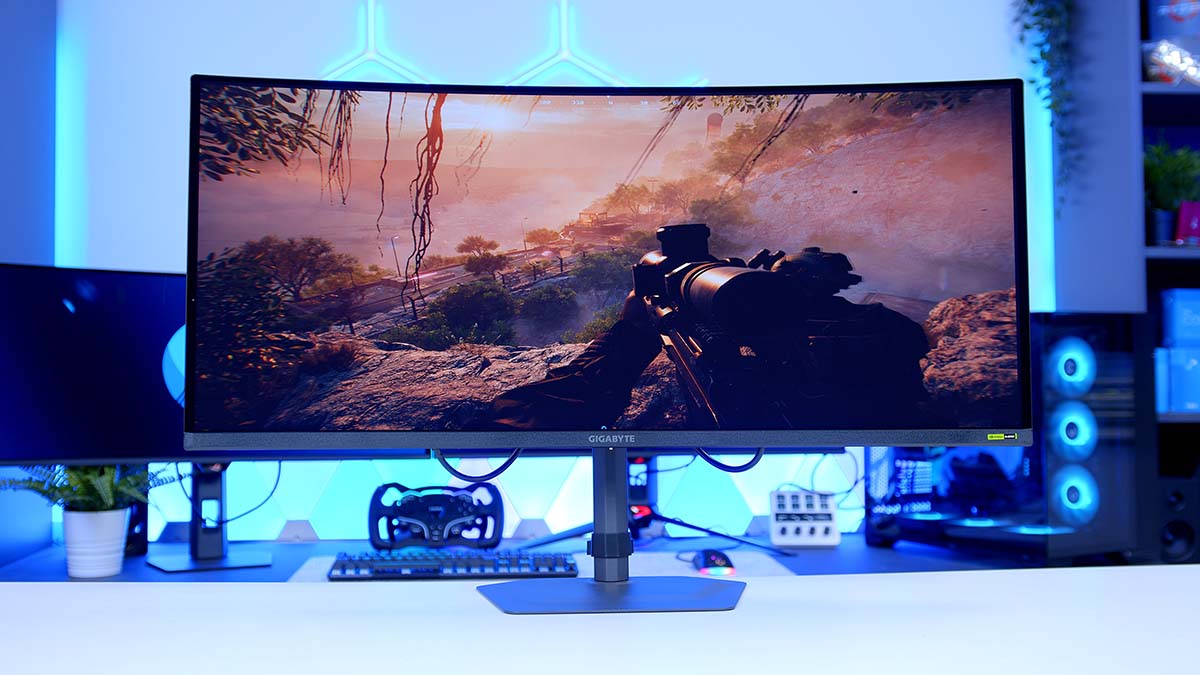
Back in April, we reckoned MSI’s 341CQR X36 was one of the most capable ultrawides ever put to market, and Samsung Display’s fifth-generation QD-OLED panel was the reason why. Six months on, Gigabyte has its own take. The MO34WQC36 uses that same new panel, so you’re getting a 360Hz refresh rate, a true RGB stripe subpixel layout and a tougher, darker screen coating, all wrapped up in Gigabyte’s understated styling.
Which leaves an interesting question. If the panel is a known quantity, what is Gigabyte actually bringing to the table? Quite a bit, as it turns out, though not everything lands for me.
Specifications
On paper, then, the MO34WQC36 reads like a greatest hits of everything QD-OLED owners have been asking for. The biggest change sits at the subpixel level. Earlier QD-OLED panels arranged their red, green and blue subpixels in a triangle, which looked lovely in games and a bit smeary around text, with coloured fringes clinging to the edges of letters. Samsung’s new V-Stripe layout lines them up in a conventional vertical RGB stripe instead, and Gigabyte claims up to 64 times better text and edge clarity as a result. Bold number. Whatever the multiplier, as far as I’m concerned, getting rid of fringing removes the single biggest argument against using a QD-OLED as your one and only desktop display.
Brightness takes a step forward as well. The panel is built on what Gigabyte calls Penta Tandem technology, spreading the light-emitting work across five OLED layers. Gigabyte says that lifts peak brightness, improves efficiency and eases the stress on each individual layer over time, which should be good news for longevity. The MO34WQC36 also carries VESA’s DisplayHDR True Black 500 certification, a rung above the True Black 400 certification worn by previous 34-inch QD-OLEDs, Gigabyte’s own MO34WQC and MO34WQC2 included.
Monitor Specifications
- Model Gigabyte MO34WQC36
- Panel Type / Screen Size QD-OLED (Curved) / 34-inch
- Resolution 3440 x 1440 (WQHD)
-
Refresh Rate / Response Time
Refresh: 360HzResponse: 0.03ms GtGMotion: VESA ClearMR 18000
-
Brightness
SDR: 300 cd/m² (100% APL)HDR Peak: 1300 cd/m² (3% APL)
- Contrast Ratio / HDR 1,500,000:1 VESA DisplayHDR True Black 500
- Colour 99% DCI-P3 10-bit (1.07 billion colours)
- Display Surface Anti-Reflection (ObsidianShield film)
- Video Inputs 2 x HDMI 2.1 (full bandwidth) 1 x DisplayPort 2.1 1 x USB Type-C (DP Alt Mode, 18W PD)
- USB / Audio 2 x USB 3.2 downstream 1 x USB 3.2 upstream 1 x Headphone jack, 2 x 3W speakers
- Adaptive Sync AMD FreeSync Premium Pro NVIDIA G-Sync Compatible
-
Stand / Mounting
Height: 130mmTilt: -5° to +21°Swivel: ±15°VESA: 100 x 100mm
- Dimensions / Weight (With Stand) 811.7 x 551.9 x 230.2mm 8.89kg
- Warranty 3 years (including burn-in)
Then there’s the coating, which Gigabyte calls ObsidianShield. The pitch is deeper perceived blacks in brighter rooms, with Gigabyte quoting up to 40% better perceived black levels and promising deep blacks and vivid colours even under strong ambient light. Surface hardness also climbs from 2H to 3H, which Gigabyte says works out at 2.5 times more scratch resistance. Handy, given how often a monitor gets wiped down.
Connectivity is a strong suit. Both HDMI ports run at full HDMI 2.1 bandwidth, meaning you can hook up a current-gen console on one and a second PC on the other without either missing out, and DisplayPort 2.1 takes care of your main rig. There’s also a USB-C input with DisplayPort Alt Mode and a built-in KVM switch, letting one keyboard and mouse hop between connected systems.
Gigabyte MO34WQC36 Design
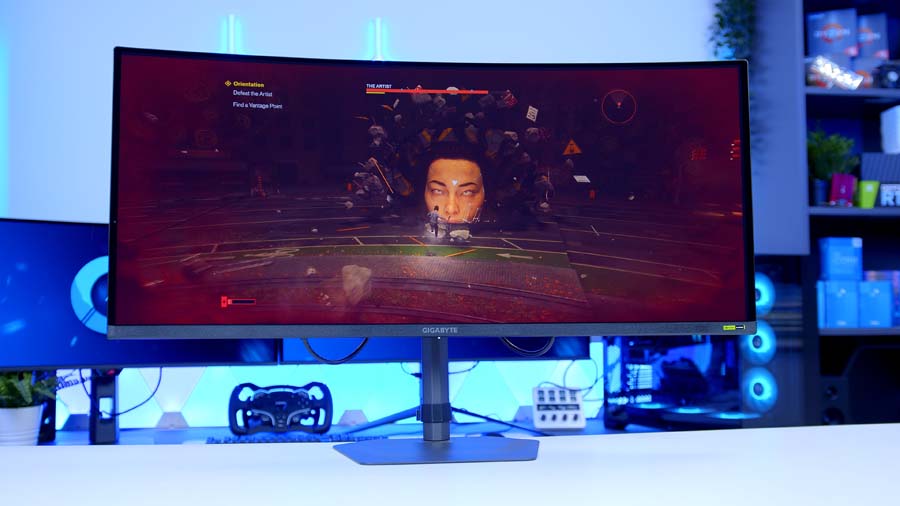
Gigabyte has played the design straight. There’s no RGB lighting on the spec sheet and no attempt at gamer theatrics, just an all-black design sat on a slim metal stand. If you like your setup to look more studio than gaming den, I’d count that as a plus. If you were hoping for a bit of AORUS swagger, look elsewhere.
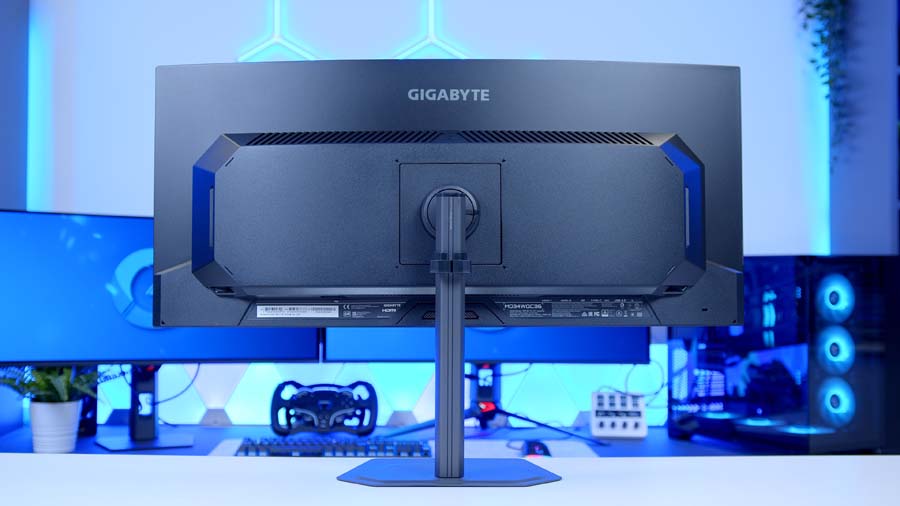
The stand is the more interesting story. It offers more height travel than MSI’s 341CQR X36 and a wider upward tilt, both welcome on a screen this wide, where getting the top edge at eye level makes a big difference to comfort over a long session. The trade-off comes side to side. Swivel is fairly tight and there’s no pivot at all, but we’ll come back to that. Prefer a monitor arm? The stand comes off to reveal a standard VESA mount.
From Our Full Review
☆☆☆☆☆
4.6/5

Pros and Cons
Pros
- 360Hz on an ultrawide OLED
- Text fringing finally fixed
- Outstanding out-of-box colour accuracy
Cons
- Underwhelming cable management
- Higher power draw than LCD
- Premium price point
Bottom Line
The MSI MPG 341CQR QD-OLED X36 is the ultrawide upgrade enthusiasts have been waiting for. Samsung’s fifth-generation QD-OLED panel tackles the format’s biggest weaknesses, with an RGB stripe layout that puts an end to text fringing and a DarkArmor coating that keeps blacks deep under ambient light. Add a 360Hz refresh rate, 98W USB-C, a KVM switch, the AI Care Sensor and a three-year burn-in warranty, and there’s very little missing. Cable management is the one ongoing frustration and the price is steep, but for anyone after the best 34-inch ultrawide around, it’s a stellar choice.
Read The Full ReviewBehind the panel, the power supply is built in, so there’s no external brick to lose under your desk, and the monitor is cooled passively according to Gigabyte. No fan, no whine. Instead, it leans on a graphene thermal film and a custom heatsink, which Gigabyte claims keeps temperatures down and reduces burn-in risk over the long haul.
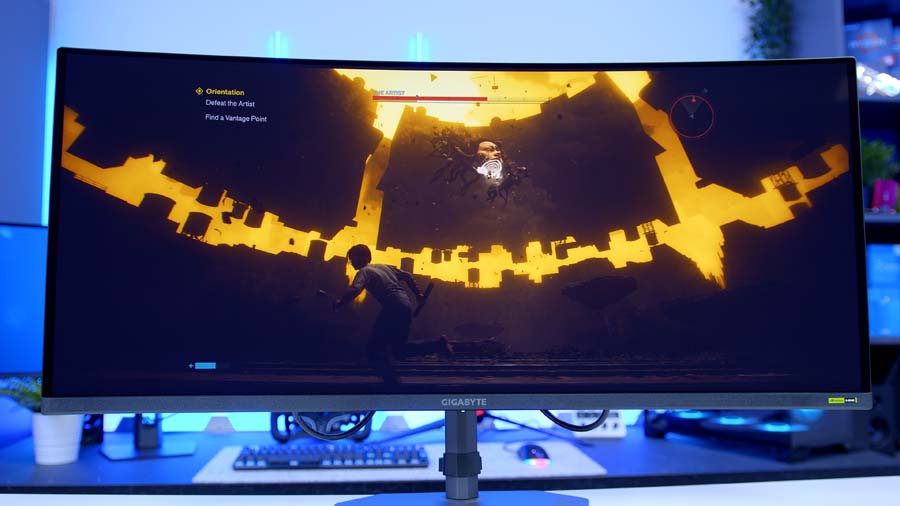
Settings are handled by a directional control button on the monitor, or from Windows via Gigabyte’s OSD Sidekick software if you connect the USB upstream cable. Tactical Switch 2.0 even gets its own dedicated button, giving you a one-click shortcut into smaller resolutions and aspect ratios like 4:3 or 5:4 for competitive shooters.
How to Set Up the MO34WQC36’s KVM Switch
If you’ve got a gaming PC and a work laptop fighting over one desk, the KVM (keyboard, video, mouse) switch is among the handiest features on this monitor, and it’s worth a couple of minutes to get it right. The idea is simple. Your keyboard and mouse plug into the monitor, and whichever computer is on screen gets control of them. No second set of peripherals, no reaching under the desk to swap cables.
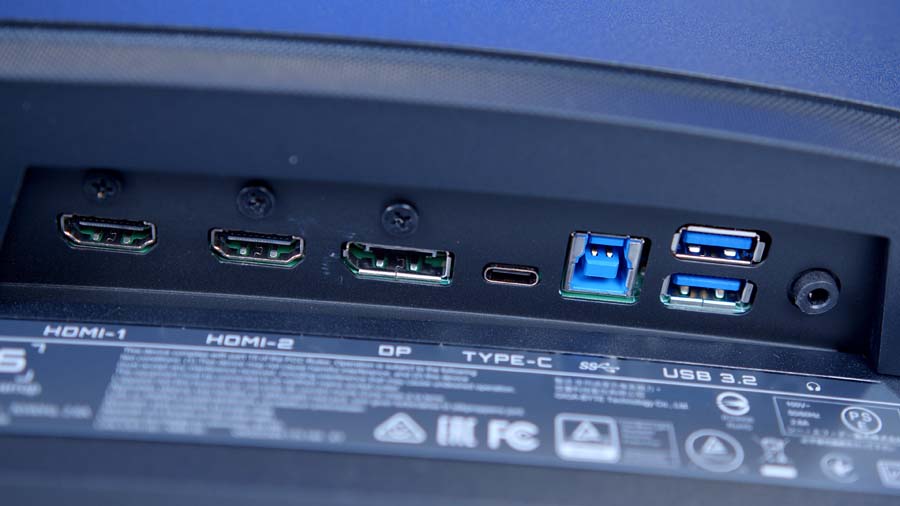
Start by plugging your keyboard and mouse into the two USB-A ports on the monitor. Your desktop then connects over DisplayPort or HDMI for video, plus the bundled USB upstream cable, so the monitor can pass your peripherals through to it. Your second machine goes in over USB-C, which handles video and USB data down one cable. One thing to watch here: Gigabyte specifies a USB-C cable that supports DisplayPort Alternate Mode and 10Gbps data, and there isn’t one in the box, so you’ll need to supply your own.
With everything plugged in, head into the Display section of the on-screen menu, where Gigabyte keeps the KVM settings, and set it up to share your peripherals between the two machines. Gigabyte’s Quick Switch menu also lets you assign KVM control to the control button, so swapping computers becomes a shortcut instead of a trip through the menus.
Features We Like
RGB Stripe Subpixels
This is the upgrade I’ve been waiting on. QD-OLED has always been glorious for games and films, but the triangular layout meant text never quite rendered the way Windows expects. ClearType, Windows’ font smoothing, is designed around horizontal stripe layouts, and that’s exactly what this panel now offers. Text should finally behave like text, which makes the MO34WQC36 a far more convincing all-rounder for the hours spent in browsers, documents and Discord between gaming sessions. Ultrawide owners who also work from their desk, this one’s for you!
Gigabyte’s OLED Toolkit
Gigabyte’s OLED feature set has grown steadily over the last couple of years, and the MO34WQC36 gets all of it. HyperNits is the standout. It tackles a common OLED gripe, where HDR peak brightness modes end up looking dim in brighter scenes, and Gigabyte says it reshapes the EOTF (electro-optical transfer function) curve to boost brightness by up to 30% without blowing out highlight detail. A gentler Medium setting adds around 20% for darker rooms.
OLED VRR Anti-Flicker targets the brightness flicker OLEDs can show when frame rates swing around, AI OLED Care handles burn-in mitigation in the background, and a warranty that explicitly covers burn-in backs the whole package up. I’d argue that last one matters most. OLED is still an investment, and knowing burn-in is covered takes a lot of the worry out of leaving a taskbar on screen all day.
Features We Don’t Like
Weak USB-C Power Delivery
A USB-C port that carries video should be a dream for laptop users. One cable for picture, peripherals and power. Here, though, Gigabyte’s USB-C port only delivers enough juice to top up a phone, nowhere near enough to keep a working laptop charged. MSI’s 341CQR X36, built on the same panel, offers 98W. It’s no dealbreaker for a desktop-only setup, and the KVM switch still does its job, but anyone hoping to dock a laptop with a single cable will be digging out the charger anyway.
Restricted Stand Adjustment
The stand’s generous height range is let down by its sideways movement. Swivel is limited to half of what MSI’s equivalent offers, and with no pivot, there’s no way to level the screen if your desk isn’t perfectly flat. Granted, nobody’s rotating a 34-inch ultrawide into portrait. But I’d have liked a little more freedom to angle the screen towards a second chair, especially at this level.
Final Thoughts
The MO34WQC36 arrives in a crowded field. MSI, Asus and Acer have all built 34-inch ultrawides around the same fifth-gen Samsung panel, so the picture at the heart of each one is going to be very similar, and the choice comes down to everything wrapped around it.
Monitor Comparison
34″ Ultrawide QD-OLED Comparison
| ⠯ Monitor | ⠯ Panel Type | ⠯ Panel Generation | ⠯ Resolution | ⠯ Refresh Rate | ⠯ DisplayPort | ⠯ HDMI | ⠯ USB-C PD | ⠯ Warranty | ⠯ Stand Adjustability |
|---|---|---|---|---|---|---|---|---|---|
Gigabyte MO34WQC36 5th‑gen QD‑OLED |
QD‑OLED | 5th‑gen Samsung, RGB Stripe | 3440 x 1440, 21:9 | 360Hz | 1 x DP 2.1 | 2 x HDMI 2.1 (48Gbps) | 18W | 3 years, incl. burn‑in | Tilt, swivel & height |
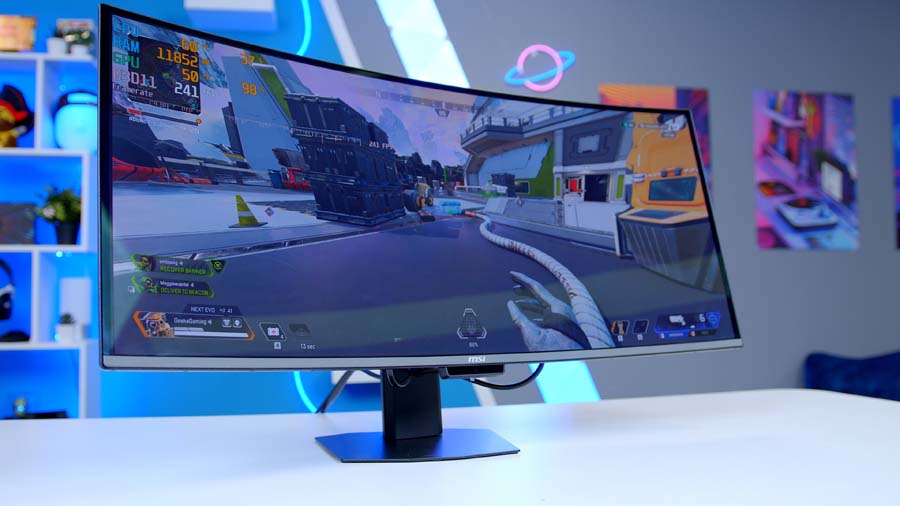
MSI MPG 341CQR QD‑OLED X36 5th‑gen QD‑OLED, 1800R |
QD‑OLED | 5th‑gen Samsung, RGB Stripe | 3440 x 1440, 21:9 | 360Hz | 1 x DP 2.1a (UHBR13.5) | 2 x HDMI 2.1 (48Gbps) | 98W | 3 years, incl. burn‑in | Tilt, swivel, pivot & height |
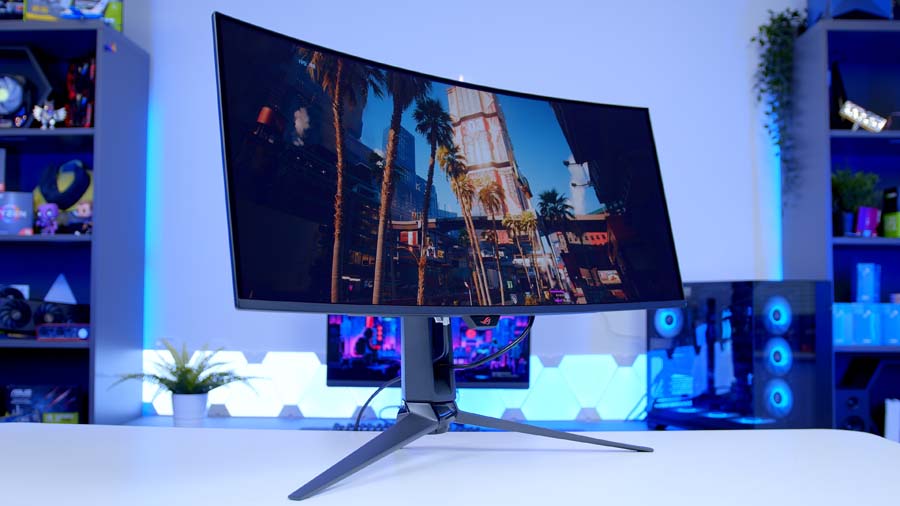
ASUS ROG Swift OLED PG34WCDN 5th‑gen QD‑OLED, 1800R |
QD‑OLED | 5th‑gen Samsung, Tandem RGB | 3440 x 1440, 21:9 | 360Hz | 1 x DP 2.1 (UHBR20) | 2 x HDMI 2.1 (48Gbps) | 90W | 3 years, incl. burn‑in | Tilt, swivel & height, no pivot |
Gigabyte’s version suits a particular kind of buyer. If your ultrawide lives on a desktop PC, maybe with a console plugged in alongside it, two full-bandwidth HDMI ports, a fanless design, HyperNits and that burn-in warranty add up to a very capable package. Laptop users are a different story. If single-cable docking matters to you, I’d point you towards MSI’s 341CQR X36 instead, thanks to its far stronger USB-C charging and wider swivel and pivot support.
Pricing will settle the rest. Same panel, similar picture, so whichever of these lands cheapest on the day you’re shopping deserves a long look. If the Gigabyte comes out on top there, desktop gamers won’t feel short-changed in the slightest.